
A WordPress Page is used for static content such as About Us, Contact, Services, or Privacy Policy pages. Unlike posts, pages are not time-based and are usually part of your site’s main navigation.
This guide explains:
- How to add a WordPress page
- Difference between Pages, Posts, and Custom Post Types
- How to edit pages using Gutenberg and Elementor
- SEO and permalink best practices
If you want to learn how to add a WordPress post check our complete guide, How to Add a WordPress Post.
What Is a WordPress Page?
A WordPress Page is a static piece of content that does not change frequently.
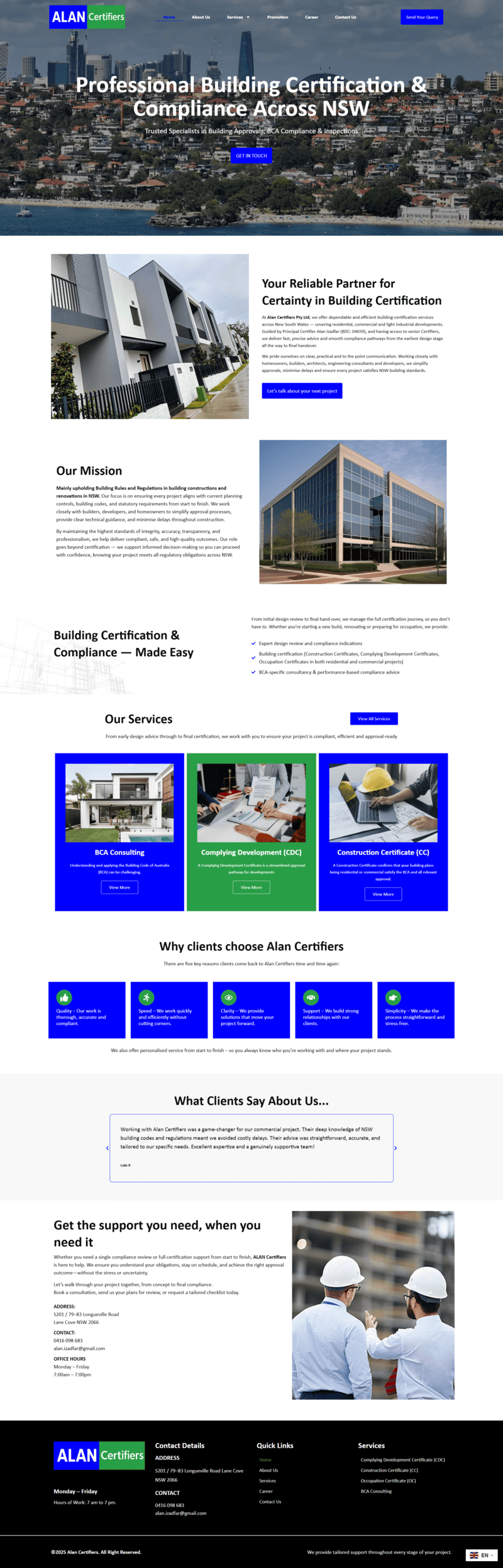
A WordPress page can be very stylish like home page with several layout shifts, or can be just simple like privacy policy or terms and conditions page. Common examples include:
- Home Page
- About Us
- Contact Us
- Services
- Terms & Conditions
Pages:
- Do not use categories or tags (by default)
- Are not listed by date
- Are ideal for evergreen content
Difference Between Pages, Posts, and Custom Post Types
WordPress Pages
Best for: Static content
✔ Not time-based ✔ Used in menus ✔ No categories or tags by default
WordPress Posts
Best for: Blog content and updates
✔ Time-based ✔ Uses categories and tags ✔ Appears in blog feeds
👉 For detailed steps, refer to the article: “How to Add a WordPress Post”
Custom Post Types (CPTs)
Best for: Structured content like portfolios, services, products, testimonials, or listings.
Examples:
- Portfolio
- Services
- Products
- Repairs (in RepairBuddy)
✔ Custom fields ✔ Custom layouts ✔ Better content organization
Custom post types are usually created using plugins or custom code.
Pages vs Posts vs Custom Post Types (Quick Comparison)
| Feature | Pages | Posts | Custom Post Types |
|---|---|---|---|
| Time-based | No | Yes | Optional |
| Categories & Tags | No | Yes | Optional |
| Menu usage | Yes | Limited | Optional |
| SEO focus | Evergreen | Ongoing | Structured |
| Use case | Static pages | Blog articles | Specialized content |
How to Add a Page in WordPress (Step-by-Step)
Step 1: Log in to WordPress Dashboard
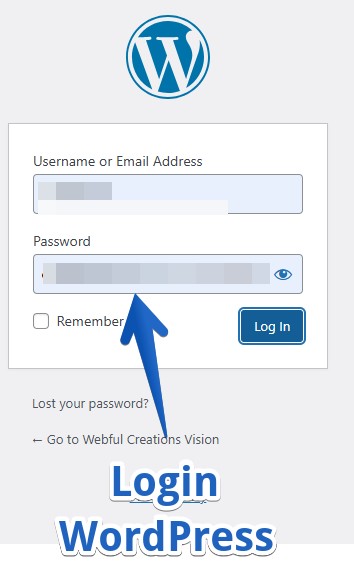
Go to:
yourwebsite.com/wp-adminStep 2: Go to Pages → Add New
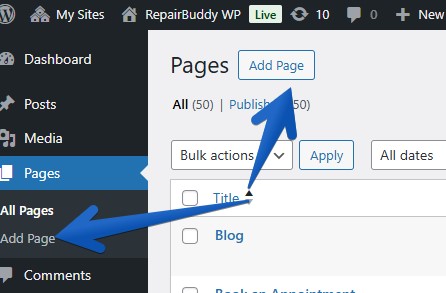
From the left sidebar:
- Click Pages
- Select Add New
This opens the WordPress page editor.
Step 3: Add Page Title and Content
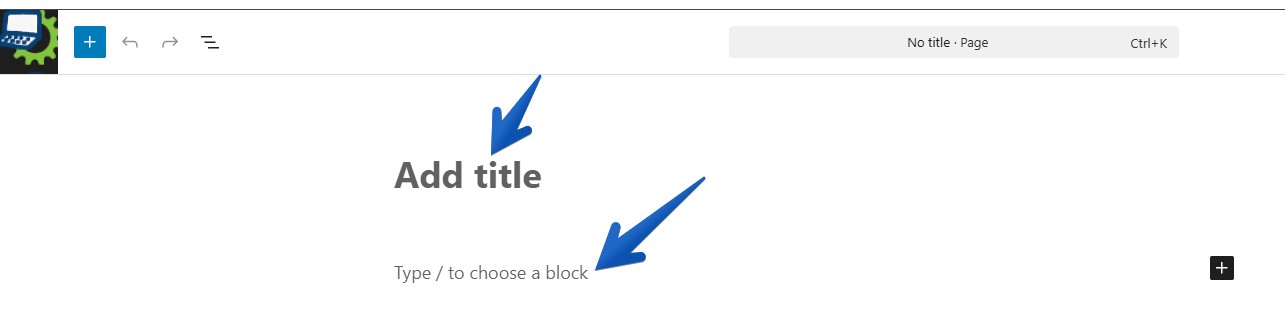
- Enter the page title at the top
- Add content using the editor
Examples of page titles:
- About Us
- Contact Us
- Our Services
How to Edit a Page Using Gutenberg (Default Editor)
Gutenberg is WordPress’s block-based editor.
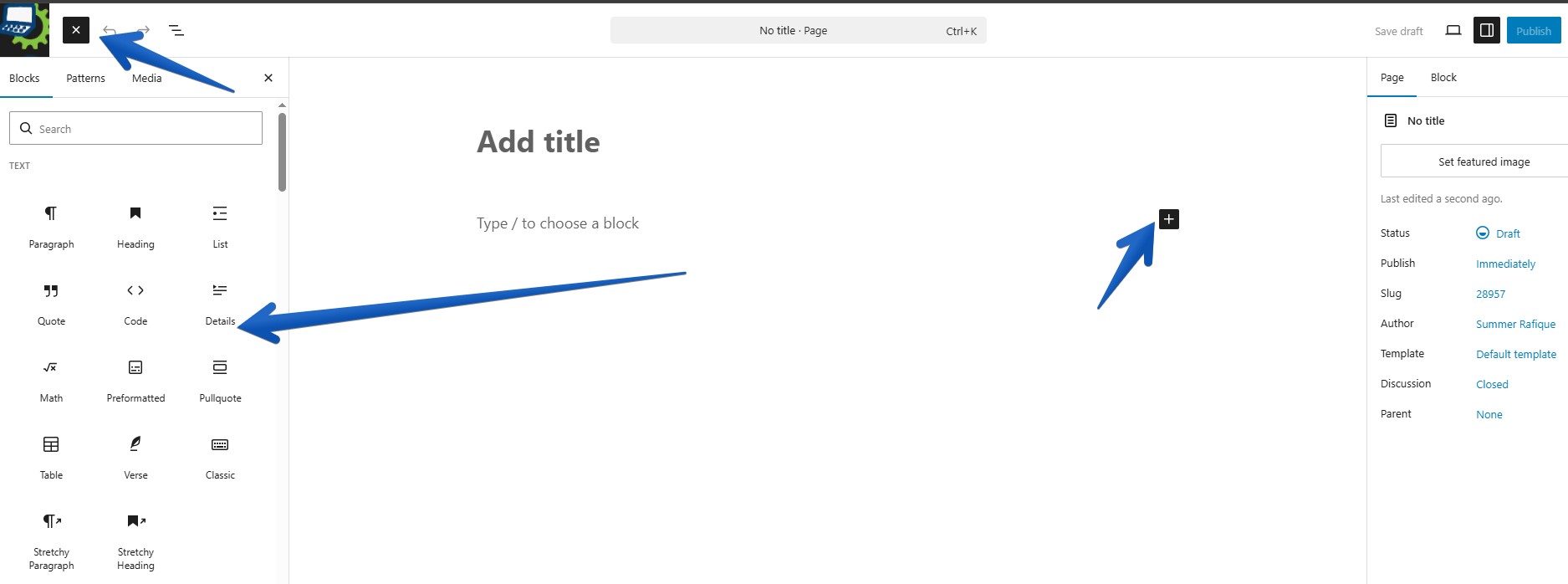
Common Gutenberg Blocks for Pages
- Heading
- Paragraph
- Image
- Columns
- Button
- Cover
Steps to Edit a Page with Gutenberg
- Add blocks using the + icon
- Rearrange blocks using drag & drop
- Customize block settings from the right panel
- Preview changes
Gutenberg is best for: ✔ Lightweight pages ✔ SEO-focused content ✔ Faster page load
How to Edit a Page Using Elementor
Elementor is a popular page builder plugin for visual design.
Steps to Edit Page with Elementor

- Open a page
- Click Edit with Elementor
- Use drag-and-drop widgets
Common Elementor Widgets
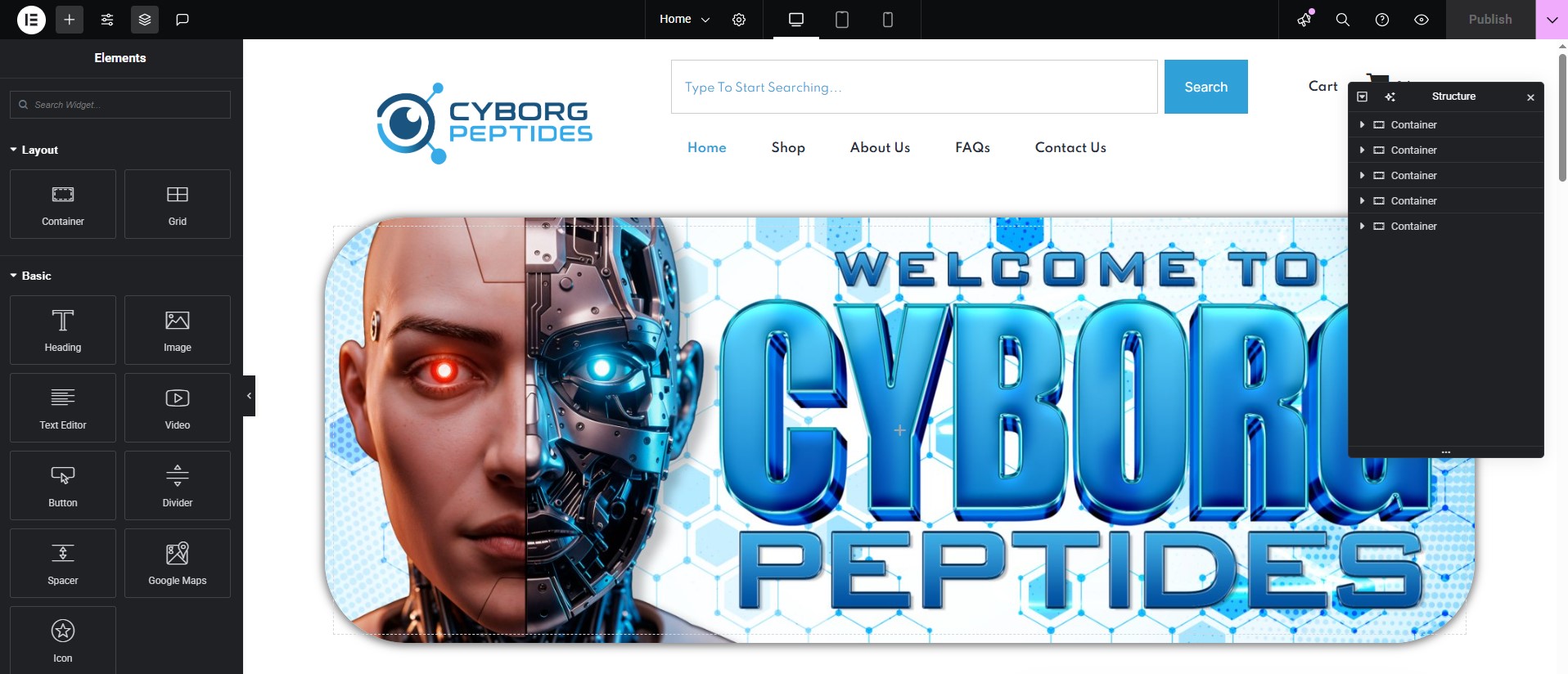
- Heading
- Text Editor
- Image
- Button
- Section & Columns
Elementor is best for: ✔ Landing pages ✔ Design-heavy layouts ✔ Marketing pages
Gutenberg vs Elementor (Which Is Better?)
| Feature | Gutenberg | Elementor |
| Speed | Faster | Slightly slower |
| Learning curve | Easy | Moderate |
| Design flexibility | Moderate | High |
| SEO friendliness | High | High (with care) |
Recommendation:
- Use Gutenberg for content-driven pages
- Use Elementor for conversion-focused pages
Setting SEO-Friendly Permalinks for Pages
WordPress allows you to customize page URLs.
Example:
yourwebsite.com/about-usBest practices: ✔ Short URLs ✔ Keyword-focused ✔ No stop words
👉 Refer to: “How to Set SEO Friendly Permalinks in WordPress”
Publishing and Updating Pages
Publish a Page
- Click Publish
- Confirm publish
Update an Existing Page
- Open page from Pages → All Pages
- Make changes
- Click Update
Common Mistakes to Avoid
❌ Using posts instead of pages for static content ❌ Overloading Elementor with heavy widgets ❌ Changing page URLs without redirects ❌ Not setting a proper permalink
When to Use Custom Post Types Instead of Pages
Use Custom Post Types if:
- You have repeated structured content
- You need filters or listings
- You want better scalability
Pages are best for standalone content, not collections.
Final Thoughts
Adding a WordPress page is simple, but choosing the right content type (Page, Post, or Custom Post Type) is critical for SEO and site structure.
For most websites:
- Use Pages for static content
- Use Posts for blogs
- Use Custom Post Types for structured data
