

In some cases or updates XAMPP start doing unexpected things. Shutdown unexpectedly is one of them and it makes us really curious. Because the data we have in our database is important and we cannot risk that at all.
Before following the following steps, First try recovery mode if that works.
[mysqld]
innodb_force_recovery = 2   # Try 2,3,4,5,6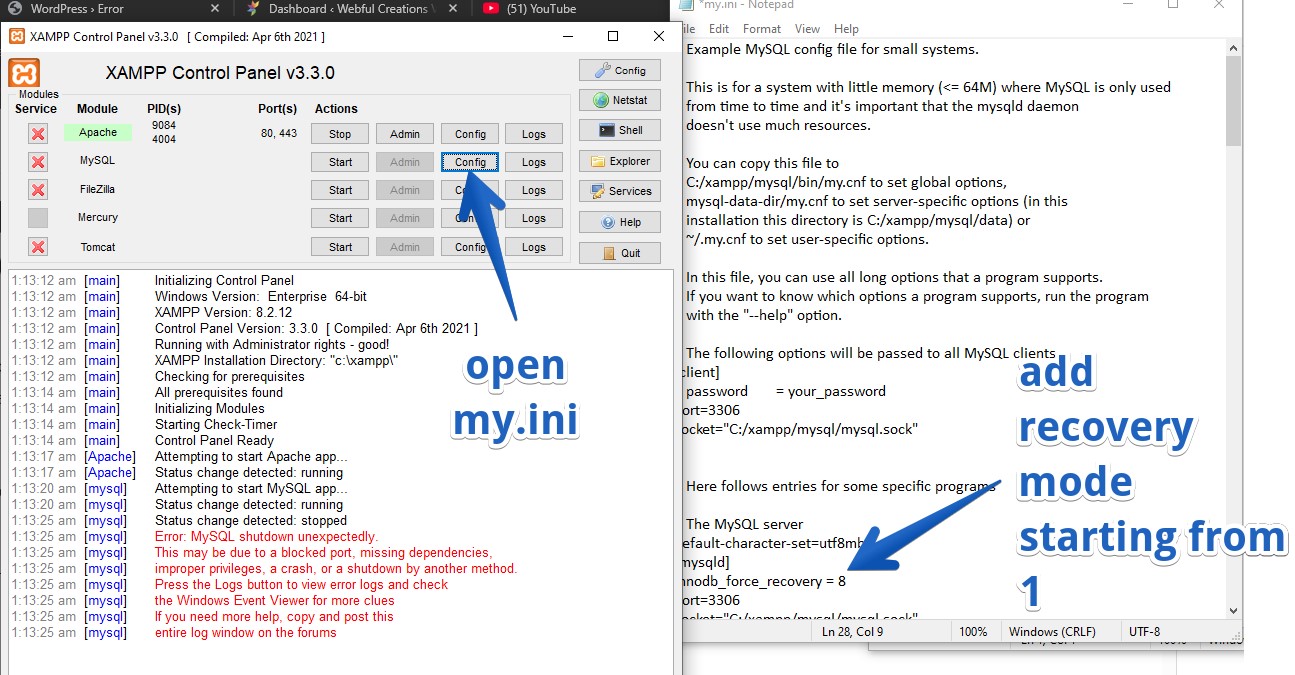
- Open XAMPP and from MySQL config open my.ini file
- Add innodb_force_recovery = 1 below [mysqld]
- Save and try to start mysql. Try changing priority 1, 2 , 6 if don’t work comment it using # or remove it and follow following step.
In case you are getting following from the XAMPP control panel then you need to restore your database from backup.
[mysql] 	Attempting to start MySQL app...
[mysql] 	Status change detected: running
[mysql] 	Status change detected: stopped
[mysql] 	Error: MySQL shutdown unexpectedly.
[mysql] 	This may be due to a blocked port, missing dependencies,
[mysql] 	improper privileges, a crash, or a shutdown by another method.
[mysql] 	Press the Logs button to view error logs and check
[mysql] 	the Windows Event Viewer for more clues
[mysql] 	If you need more help, copy and post this
[mysql] 	entire log window on the forums
⚠️ CAUTION: Back up your data before proceeding. Failure to follow these steps exactly as written may result in permanent loss of your databases. Please pay close attention to Step 1 to ensure you have a recovery point.
How to Fix “MySQL Shutdown Unexpectedly” in XAMPP
If you are seeing the “MySQL shutdown unexpectedly” error in your XAMPP Control Panel, follow these steps to restore your service without losing your local databases.
- Backup Your Current Data: Navigate to your XAMPP installation folder (usually
C:\xampp\mysql\). Rename the existing data folder to data_bk. - Create a Fresh Data Folder: Create a brand new folder named data in the same
xampp/mysql/directory. - Initialize the New Folder: Go into the backup folder (
xampp/mysql/backup/). Copy all files and folders from there and paste them into your new data folder. - Restore Your Databases: Go to your data_bk folder. Copy all of your specific database folders (the folders named after your projects) and paste them into the new data folder.
- CRITICAL: Do NOT copy the
mysql,performance_schema, orphpmyadminfolders from the backup.
- CRITICAL: Do NOT copy the
- Restore the Data Engine: From your data_bk folder, find the file named ibdata1. Copy it and paste it into the new data folder, replacing the one that is currently there.
- Restart MySQL: Open the XAMPP Control Panel and click Start on the MySQL row. Your databases should now be visible and the service should stay running.
I hope this time it worked for you! please leave your feedback below to help others.

7 Comment(s)
i have tried this but Not working………..
Thank you, this worked. The only thing was that I needed to go back and put in user information. So now I have backed up the files again if needed.
You sir, have saved my life, my local testing databases and a lot of time in my work. Thanks a lot.
I am glad it helped you 🙂
It worked. Thanks so much
Worked for me, thanks!
Thanks so much – saved me a lot of grief!