
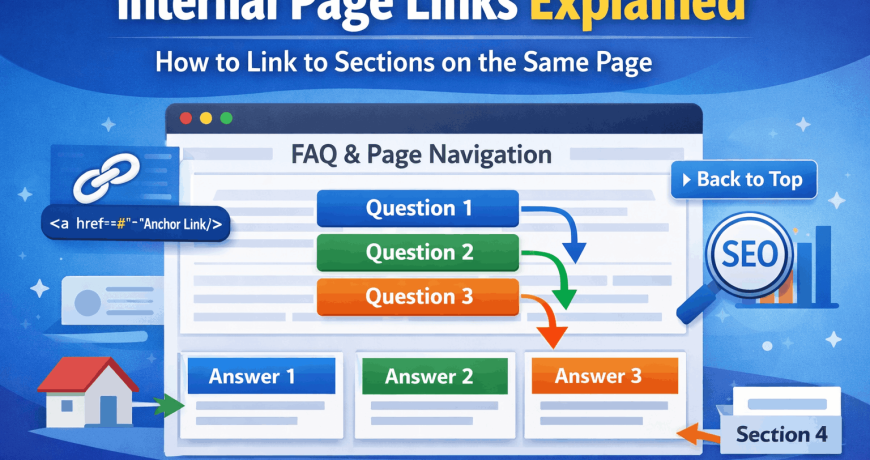
Internal page links—also known as anchor links or jump links—allow visitors to jump directly to specific sections of a web page instead of landing at the top and scrolling manually. These links significantly improve user experience, page navigation, and SEO performance, especially for long-form content.
In this guide, you’ll learn:
- What internal page links are
- How anchor links work
- How to link to different sections on the same page
- How to create a Back to Top link
- How to link to a specific section on another page
- SEO best practices for internal anchor links
Who is this article for?
If you want to become a website developer. And you are trying to figure out what are the absolute links, or maybe you want to learn what are relative links. Or you need to understand the difference between relative and absolute links. As you know html have various types of a href links. Similarly internal links which takes you to different section of the same page are helpful for reader to reach to a section instead scrolling whole page.
What Are Internal Page Links?
Internal page links are hyperlinks that point to a specific section within the same webpage. Instead of loading a new page, the browser scrolls to a defined location on the current page.
They are commonly used for:
- FAQ pages
- Table of contents navigation
- Long blog posts
- Documentation pages
- Product feature breakdowns
Search engines like Google also use internal links to better understand page structure, which can help with rankings and featured snippets.
How Do Internal Anchor Links Work?
Anchor links work by connecting a clickable link (href) to a target identifier within the page using the # symbol.
There are two ways to define the target:
- Using the modern
idattribute (recommended) - Using the older
<a name="">attribute (legacy method)
Example Use Case: Questions at the Top, Answers Below
Imagine you have three questions at the top of your page, and the answers appear further down. Instead of forcing users to scroll, you want them to click a question and instantly jump to its answer.
Step 1: Create Sections Using IDs (Recommended Method)
This is the best and modern approach.
<h2 id="answer1">Answer 1</h2>
<p>This is my first answer on the same page.</p>

<h2 id="answer2">Answer 2</h2>
<p>This is my second answer on the same page.</p>

<h2 id="answer3">Answer 3</h2>
<p>This is my third answer on the same page.</p>
Each section now has a unique ID that can be linked to.
Step 2: Add Links That Jump to Those Sections
Now, place your clickable questions at the top of the page.
<a href="#answer1">Our Question 1</a><br>
<a href="#answer2">Our Question 2</a><br>
<a href="#answer3">Our Question 3</a>
When a user clicks any of these links, the page will automatically scroll to the related answer.
Using the Old <a name=""> Method (Not Recommended)
Older HTML used the name attribute instead of id. While still supported by some browsers, it is deprecated and should be avoided in new projects.
<a name="answer1"></a>
<p>This is my first answer.</p>
Modern websites should always use IDs instead.
How to Create a “Back to Top” Link
A Back to Top link is one of the most common internal page links and is especially useful on long pages.
Step 1: Add an ID at the Top of the Page
Place this right after the opening <body> tag:
<body>
<div id="top"></div>
Step 2: Add the Back to Top Link Anywhere
Usually placed in the footer or after long sections:
<a href="#top">Back to Top</a>Clicking this link will instantly take the user back to the top of the page.
How Internal Page Links Work Behind the Scenes
What’s happening technically is simple:
- You assign an ID to a section of the page
- You reference that ID using a hyperlink with
# - The browser scrolls to that element automatically
Example:
<a href="#features">Jump to Features</a>Targets:
<section id="features">Linking to a Specific Section on Another Page
You can also link to a specific section on a different page, not just the same one.
Step 1: Add an ID on the Destination Page
Let’s say you have a page called destination.html.
<h2 id="section4">Section 4</h2>
<p>This is section 4 content.</p>
Step 2: Link to That Section from Another Page
From your homepage or any other page:
<a href="destination.html#section4">
  Go to Section 4 on Destination Page
</a>
This link:
- Loads
destination.html - Automatically scrolls to Section 4
SEO Benefits of Internal Page Links
Using internal anchor links correctly can improve:
- User engagement
- Time on page
- Content accessibility
- Crawlability by search engines
- Featured snippet eligibility
SEO Best Practices:
- Use descriptive anchor text
- Avoid generic labels like “Click Here”
- Keep IDs short and keyword-focused
- Use internal links for long-form content
- Don’t overuse anchors unnecessarily
Common Mistakes to Avoid
❌ Duplicate IDs on the same page
❌ Using spaces in IDs
❌ Forgetting the # symbol
❌ Linking to IDs that don’t exist
❌ Using <a name=""> in new projects
Final Thoughts
Internal page links are a simple but powerful technique that improves navigation, usability, and SEO. Whether you’re building FAQ pages, documentation, or long blog posts, anchor links help users reach exactly what they’re looking for—faster.
By using modern id-based anchors and clear linking strategies, you can create a smoother browsing experience and make your content more search-engine friendly.
